

 Vietnamese
 Japanese
 English
Get Started with Fujigo Meeting AI in 3 Minutes — Setup Guide
Fujigo Software Solutions
Member of M&C Holdings (Japan)
Before You Start
System Requirements
| Requirement | Minimum | Recommended |
|---|---|---|
| OS | Windows 10 / macOS 12+ | Windows 11 / macOS 14+ |
| RAM | 8GB (cloud STT) | 16GB+ (local STT — free & unlimited) |
| Storage | 500MB | 2GB (with local STT model) |
| Microphone | Any built-in or external | External USB mic for best accuracy |
What you’ll need: 3 minutes of your time, a working microphone. That’s it.
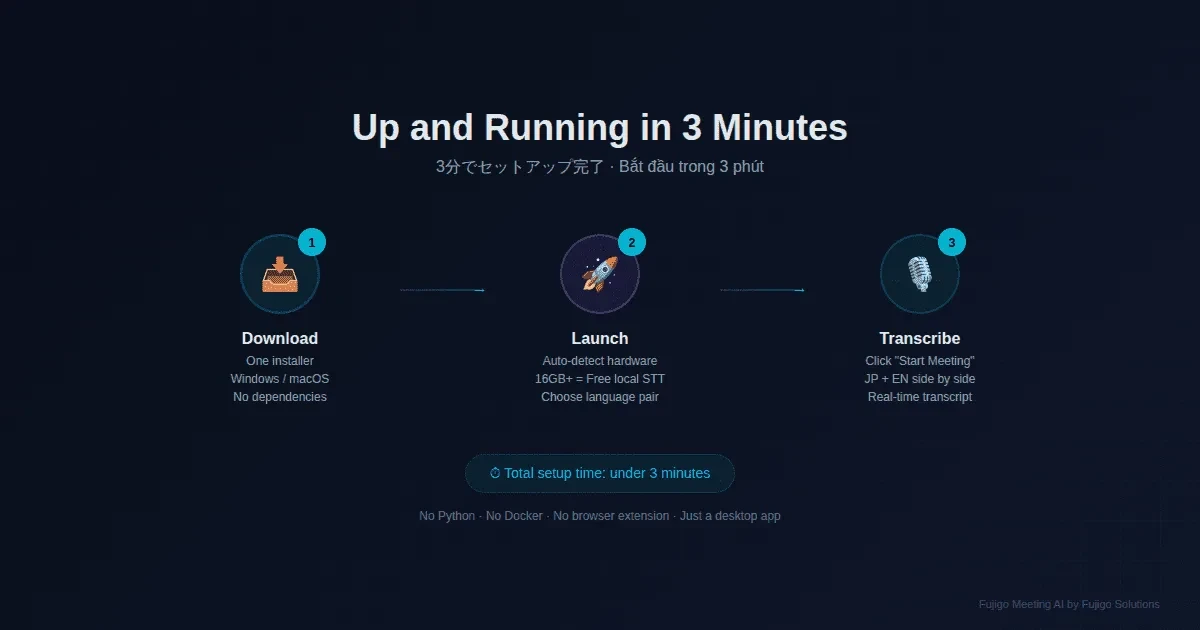
Step 1: Download & Install (1 minute)
- Go to fujigo-meeting.app/download
- Select your OS: Windows (.msi) or macOS (.dmg)
- Run the installer — follow the standard install prompts
- Fujigo Meeting AI appears in your applications
No Python. No Docker. No command line. No browser extensions. Just a normal desktop app install.
Step 2: First Launch & Account (1 minute)
-
Open Fujigo Meeting AI
-
The app detects your hardware automatically:
- 16GB+ RAM → Local STT enabled (free, unlimited transcription)
- 8-16GB RAM → Cloud STT recommended (100 free minutes/month)
-
Create a free account (email + password) or skip for offline-only mode
-
Choose your primary language pair (e.g., Japanese → English)
Pro tip: If your machine has 16GB+ RAM, you’re set for unlimited free transcription. The local STT model downloads automatically (~1.5GB, one-time only).
Step 3: Start Your First Meeting (1 minute)
-
Join your meeting on any platform (Zoom, Teams, Meet, or in-person)
-
In Fujigo Meeting AI, click “Start Meeting”
-
Select audio source:
- Microphone only — captures your mic input
- System audio — captures what your speakers play (remote participants)
- Both (recommended) — captures everything for complete transcription
-
Watch the transcript appear in real-time, side by side in both languages
That’s it. You’re now transcribing a bilingual meeting with AI assistance.
After the Meeting
Generate AI Summary (Pro plan)
-
Click “Stop Meeting”
-
Click “Generate Summary”
-
Choose detail level:
- Quick — key decisions and action items only
- Standard — decisions, actions, and important discussion points
- Full — comprehensive meeting minutes with quotes
-
Get structured notes with decisions, action items, and follow-ups — in both languages
Export Options
- DOCX — Word document for formal distribution
- PDF — For archiving and sharing
- Markdown — For wikis and documentation systems
Review Transcript
- Edit any transcription errors inline
- Add or correct speaker labels
-
Search through past meetings by keyword
Optional Setup: Power Features
Glossary (Highly Recommended for BrSE)
-
Go to Settings → Glossary
-
Add your project’s technical terms with:
- Japanese term (e.g., 要件定義)
- English term (e.g., Requirements Definition)
- Pronunciation / kana (e.g., ようけんていぎ)
-
Or bulk import from CSV:
term_jp, term_en, pronunciation -
Terms are injected into STT as “hot words” → significantly better accuracy for your domain
BYOK (Bring Your Own Key)
-
Go to Settings → API Keys
-
Add your own API keys from any supported provider:
- OpenAI, Anthropic, Groq, DeepL, DashScope
-
All keys are encrypted with AES-256-GCM at rest
-
Use your own billing — Fujigo Meeting AI never proxies your credentials
Document Context (RAG)
- Go to Library → Upload Document
- Upload specs, weekly reports, or reference materials (PDF, DOCX, MD)
- Fujigo Meeting AI uses them as context during meetings
- AI suggestions become grounded in your actual project data
Troubleshooting
| Issue | Solution |
|---|---|
| No audio detected | Check microphone permissions in OS settings (System Preferences → Privacy → Microphone) |
| Low transcription accuracy | Add domain terms to Glossary; use external USB mic; reduce background noise |
| High CPU usage with local STT | Switch to Cloud STT mode in Settings; or close other resource-heavy apps |
| App won’t start | Update to latest version; verify minimum OS version; check system logs |
| Cloud STT not working | Verify internet connection; check if cloud quota is exhausted for the month |
Keyboard Shortcuts
| Shortcut | Action |
|---|---|
Ctrl/Cmd + R |
Start/Stop Recording |
Ctrl/Cmd + P |
Pause/Resume |
Ctrl/Cmd + M |
Mute/Unmute Microphone |
Ctrl/Cmd + G |
Generate Summary |
Ctrl/Cmd + E |
Export Transcript |
Need help? Contact [email protected] or visit our documentation.
Download Fujigo Meeting AI → fujigo-meeting.app
Related articles: